Tangled cables are the fastest way to ruin a desk that looks good in every other way. A monitor, a laptop dock, a phone charger, a lamp, a pair of speakers — each one adds a wire, and wires find each other instantly. The result is a visual mess that makes the whole setup feel chaotic even when everything else is organised.
The good news is that cable management does not require expensive furniture or a weekend renovation. It requires a plan, about two hours, and a handful of inexpensive tools. This guide covers the whole process in order.
Start with a plan before touching anything
The single most common cable management mistake is diving straight in — buying clips and sleeves before you know where each cable needs to go. Pull everything away from the desk first and map it out.
Draw a rough top-down sketch of your desk. Mark where each device sits: monitor, laptop, keyboard, speakers, lamp, charging station. Then draw a line from each device back to the power source. Where those lines overlap is where you bundle cables together. Where they run alone, a single clip is enough.
Planning first means you buy the right quantity of the right products. It also reveals whether you have too many cables because you are using a power strip in a poor location. Moving the power strip to an under-desk mount, positioned centrally at the back, usually cuts the visible cable runs by half.
Mount the power strip under the desk
The single highest-impact change in any desk setup is getting the power strip off the floor. A strip sitting on the floor means every cable has to drop down, pool on the floor, and run back up — creating visible loops and dust traps.
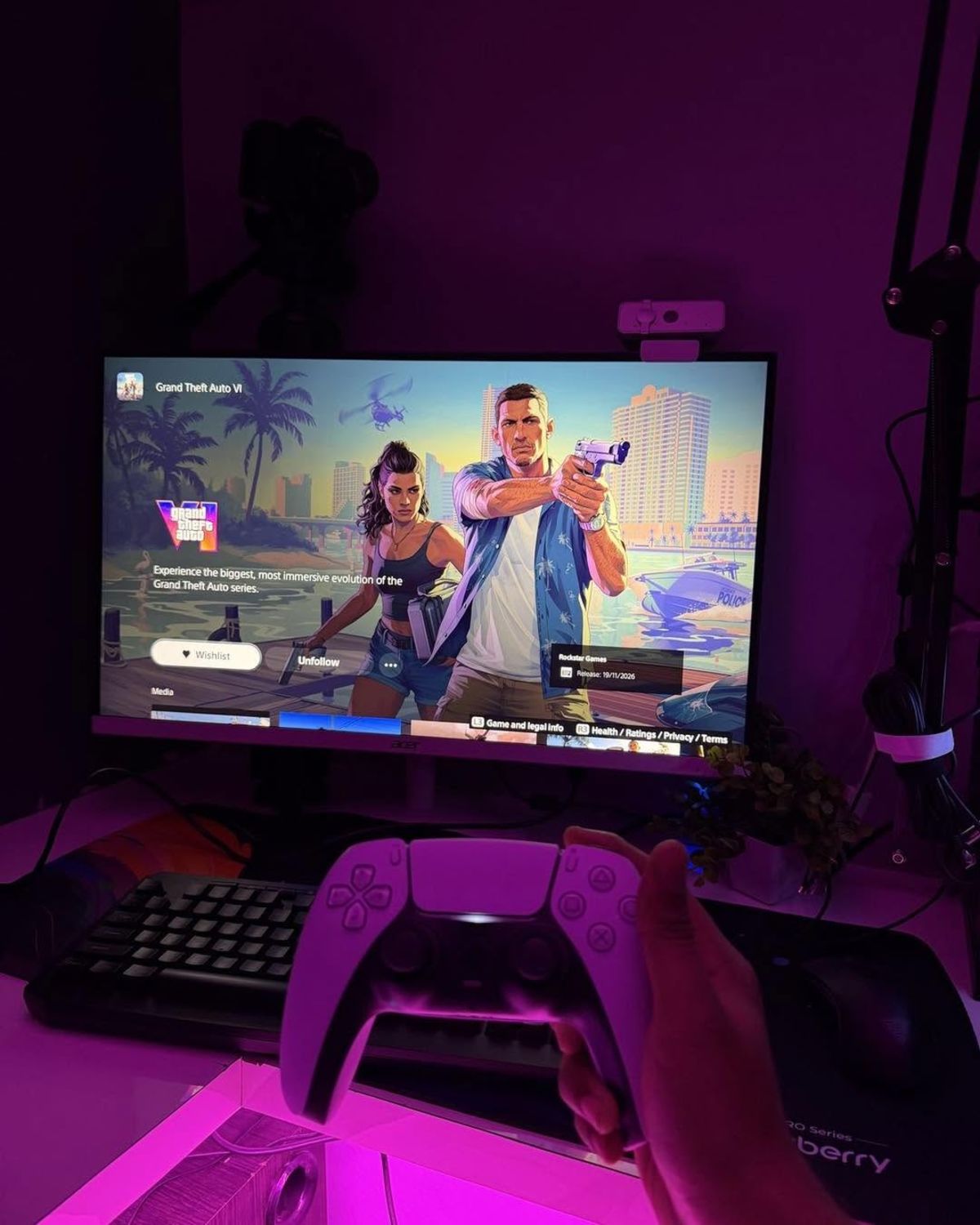
Getting the power strip off the floor eliminates the most common source of visible cable chaos
Mount the strip to the underside of the desk near the back-centre. Most strips can be attached with heavy-duty hook-and-loop tape or the included mounting screws. Once mounted, cables from your monitor, speakers, and lamp all drop straight down a short distance to the strip rather than looping across the desk surface.
Use an under-desk cable tray for the bulk
After the power strip, the under-desk cable tray handles the remaining bulk. These are open wire or solid trays that mount under the desk with adhesive or screws. All the cables from your power strip, laptop charger, and any external drives can sit in the tray invisibly when you are seated.
Cable trays come in fixed lengths and adjustable versions. For most desks, a 40–50 cm tray positioned near the centre-back is sufficient. You lay the bundled cables into it and they disappear below the desk surface without drilling a single hole.
If you have a standing desk, leave enough slack in the tray for the desk to travel to its full height without pulling any cables tight. Test the movement before you clip or tie anything permanently.
Bundle and label cables at the source
Use reusable hook-and-loop ties rather than plastic zip ties. Plastic ties are permanent — cut one near a USB cable and you can damage the cable. Hook-and-loop ties hold just as well, cost almost nothing, and let you swap devices without cutting anything.
Bundle cables that travel the same route together. The monitor's power cable and display cable both come from the same corner of the desk and go to the same area — bundle them. Your phone charger runs to a different location — leave it separate.
Label cables where they enter the power strip. A small piece of masking tape or a cable label on each plug tells you instantly what to unplug without tracing cables back to their source.
Anchor visible cable runs with adhesive clips
Any cable that still has to travel along the back of the desk or down a desk leg needs to be anchored with adhesive clips. These small plastic clips hold the cable flush against the surface so it does not swing or droop.
Space clips every 20–30 cm along a cable run. Press firmly for 30 seconds after attaching each clip to ensure proper adhesion. Avoid routing cables across high-heat surfaces like the top of a computer tower.
For desk legs, cable sleeves or spiral wrap bundle everything into a single tidy run from the desk surface to the floor. A single sleeve looks far cleaner than four individual cables.
Keep the desktop surface completely clear
No cable should cross the surface of the desk. If a cable is running from your monitor across the desk to reach a USB hub or charging brick, reroute it — go behind and under, not across the top.
The exception is a single cable for devices you connect and disconnect daily, like a laptop or phone. Run this one through a grommet or a simple desk-edge clip so it is ready to use but not trailing across the surface.
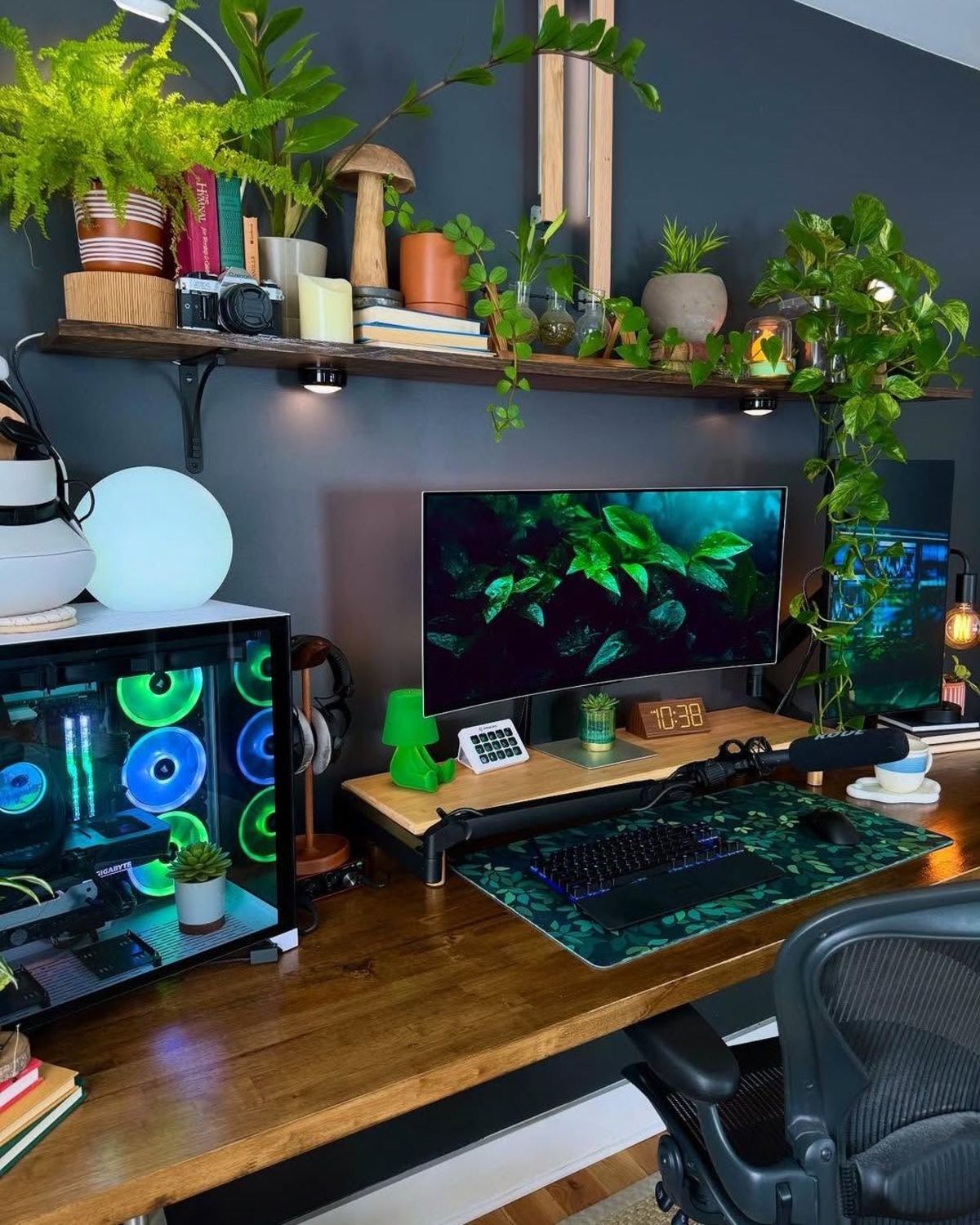
A well-managed desk has zero cables crossing the surface — everything routes behind and below
Wireless where it matters
The final cable management strategy is eliminating cables entirely. A wireless keyboard and mouse remove two cables from the equation permanently. A laptop or monitor with a single Thunderbolt or USB-C connection means one cable handles power, video, and USB simultaneously.
Wireless charging pads for your phone mean one fewer cable on the desktop. A Bluetooth speaker replaces the speaker wire. Each wireless substitution is one fewer thing to manage.
That said, do not go wireless for everything. Wired headphones sound better than wireless at equivalent prices. Wired keyboards respond faster for competitive gaming. Make wireless substitutions where the trade-off is worth it for your workflow.
The result
A well-managed desk setup has zero cables visible from the front. When you sit down to work, you see the monitor, the keyboard, the mouse, and the lamp. The infrastructure is behind and below, invisible until you need to reach it.
This is not a weekend project — it is a two-hour process that pays off every day. Tidy cables make the whole setup feel calmer, faster to clean, and noticeably more professional.
Explore minimal desk setups and home office setups in the gallery to see how real workspaces handle cable organisation. Read our minimal desk setup ideas guide for the broader approach to a clean workspace.