Ergonomics is not about expensive chairs or special equipment. It is about positioning. Most desk-related pain — neck tension, shoulder tightness, lower back ache, wrist strain — comes from positions that load the muscles and joints consistently over hours. Adjusting those positions takes 15 minutes. The relief is often immediate.
This guide covers every adjustment in the order it should be made.
Start with the chair
Chair height is the foundation of every other ergonomic adjustment. Sit in the chair with your feet flat on the floor. Your knees should form approximately a 90-degree angle. Your thighs should be roughly parallel to the floor.
If the chair is too low, your knees rise above your hips, which loads the lower back. If it is too high, your feet dangle or your thighs slope downward, which puts pressure on the underside of the thighs.
With the seat height correct, set the lumbar support to contact your lower back without pushing it forward. Adjust the armrests to elbow height — when your hands rest on the keyboard, your elbows should sit close to your body with your forearms roughly parallel to the floor.
Set the monitor height
With the chair and desk height correct, the top of your monitor screen should be at or very slightly below eye level. Your gaze should angle very slightly downward to see the middle of the screen. This is the natural, relaxed position for the cervical spine.
Most monitors on their stock stands are too low. The solution is a monitor riser (a fixed platform), a monitor arm (adjustable, attaches to the desk edge), or simply a stack of books as a temporary fix. For most adults, raising the monitor 10–15 cm above stock-stand height is enough.
If you work from a laptop, use a laptop stand to bring the screen to the correct height and connect a separate keyboard and mouse. Hunching toward a laptop screen for hours is one of the most reliable ways to develop neck and shoulder pain.
Position the keyboard and mouse correctly
The keyboard should be close enough that your elbows stay near your body when typing — not reaching forward. Your wrists should be straight or very slightly extended (angled up), not bent down toward the desk. Many people rest their wrists on the desk while typing, which loads the tendons. Keep wrists floating during active typing.
The mouse should sit immediately to the right of the keyboard (or left for left-handed users) at the same level. Reaching far to the side for the mouse strains the shoulder over time. A compact keyboard without a numpad reduces the reach distance to the mouse significantly.
Check the monitor distance
The correct distance from your eyes to the screen depends on monitor size. A general rule: the screen should be roughly an arm's length away — 50–70 cm for most monitor sizes. Larger monitors need to be slightly further away.
If you find yourself leaning toward the screen to read, the font size in your applications is too small, not the monitor distance. Increase the display scaling or font size rather than moving closer.
Address the lighting
Screen glare causes eye strain that mimics the physical strain of a mismatch. Check whether windows or overhead lights create reflections on the screen. Position the desk so windows are to the side rather than in front or behind. Use a matte screen finish or a monitor hood if glare is unavoidable.
Add a desk lamp to balance room lighting with screen brightness. A room lit only by the monitor creates a high-contrast environment that tires the eyes faster.
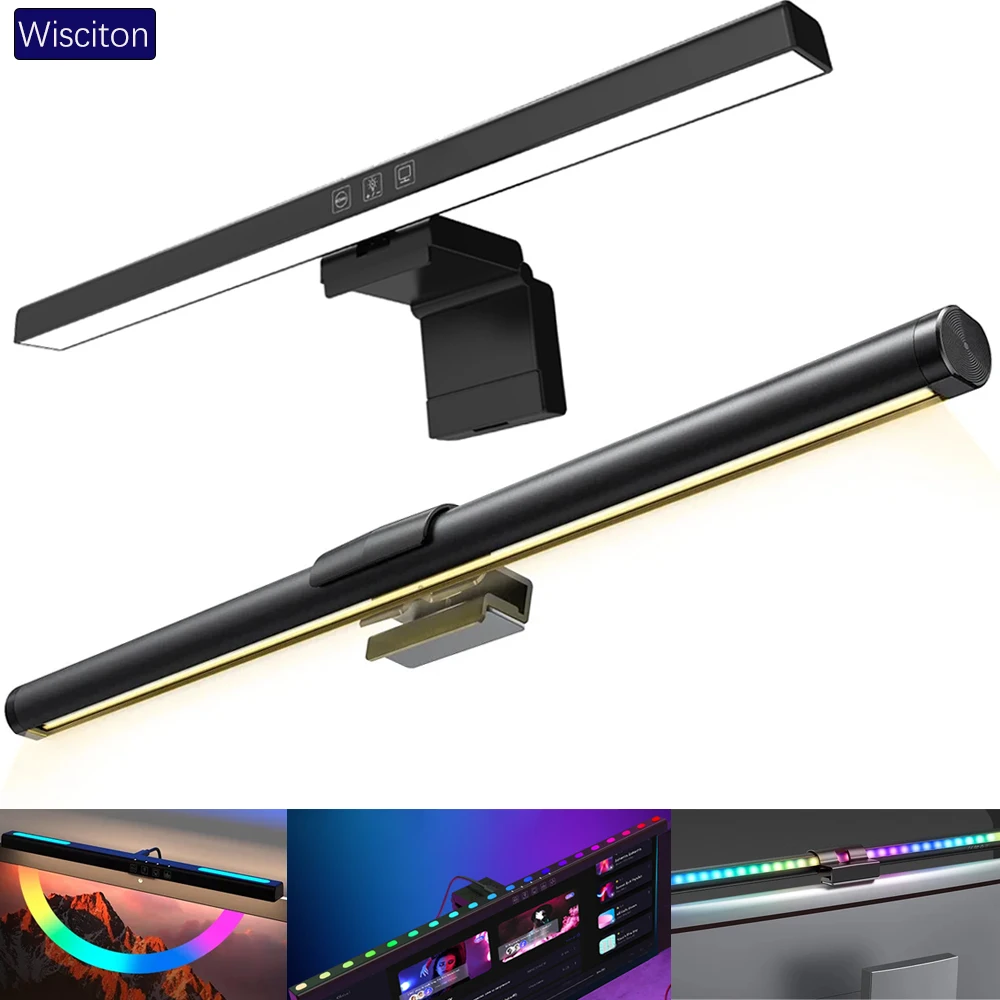
lighting
Wisciton Adjustable RGB Monitor Light Bar
$11.09
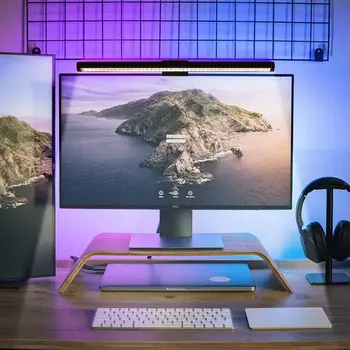
Lighting
RGB Monitor Light Bar for Desk Setups
$24.99
Take movement breaks
The best ergonomic setup in the world does not eliminate the need to move. Static posture — sitting or standing in one position for extended periods — loads the same muscles and joints continuously. Stand up and walk for two minutes every 45–60 minutes. This is the single most evidence-supported ergonomic intervention for desk workers.
A standing desk helps by giving you the option to change posture without leaving the workspace. See our standing desk setup guide for how to set one up correctly.
Browse ergonomic home office setups in the SetupGallery gallery to see real setups built around proper positioning.